3 practical fixes for a faster website
Website performance optimization often starts with the things a page downloads, rather than a new framework. A restaurant menu, a product listing, and a company landing page can all carry unnecessary image data, library code, and embedded widgets.
Start with one important page on mobile and desktop. Save a baseline, then work through the three checks below. The aim is to remove work the browser does not need to do while keeping the page useful and visually intact.
1. Make everyday images lighter
A small image can still be an expensive download. A transparent PNG cutout, a promotional banner, or a background decoration may contain far more data than its role on the page requires. Several such files can add up even when none looks especially large.
The food menu on the Five Guys homepage is a useful example. Five downloadable PNG source files referenced by that section total 1.29 MB. In a local encoding experiment, I converted those sources to WebP at quality 80, preserving dimensions and transparency: the results weigh about 194 kB. Five Guys already serves WebP to the browser; the 84.9% reduction below compares source files in a local experiment.
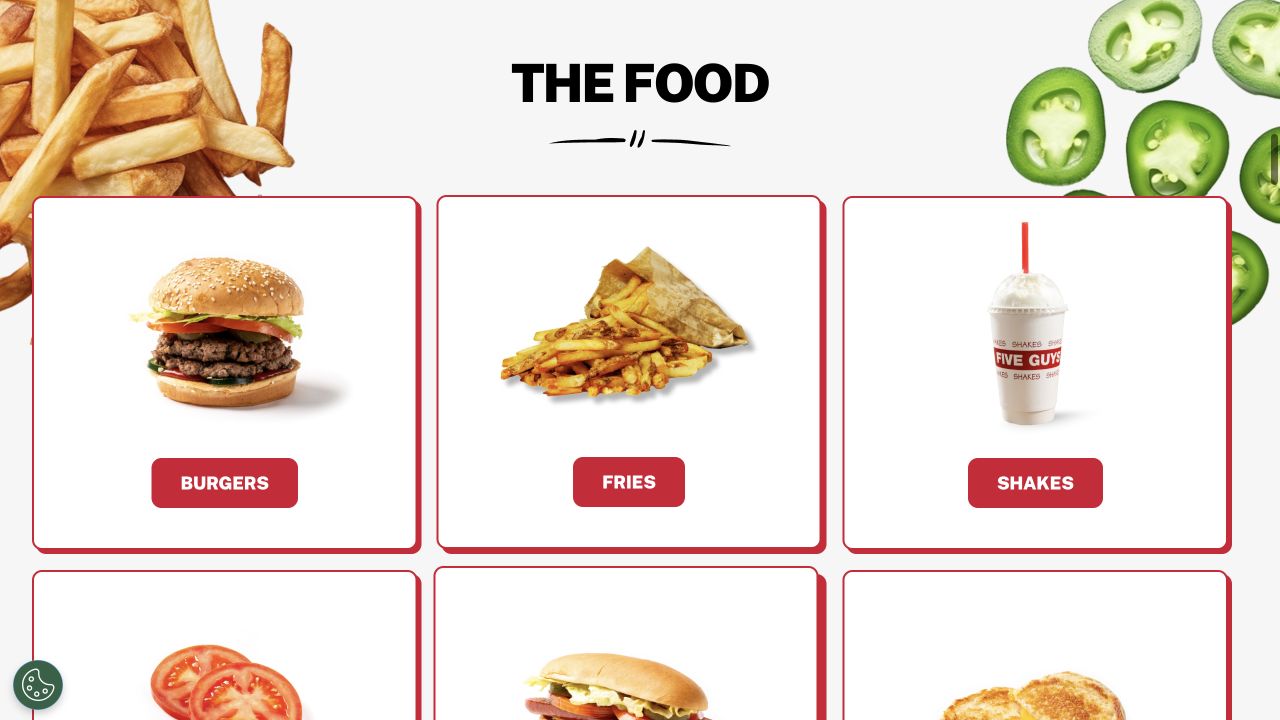
Local source-file experiment: 1.29 MB PNG → 193.7 kB WebP, or 84.9% smaller.
Five Guys menu, captured October 19, 2026. Source: Five Guys.
See the measurements and source files
Downloaded PNG bodies: 1,286,664 bytes in total. Sharp 0.35.5, WebP quality 80: 193,748 bytes. No resizing; alpha channels retained. The fries cutout alone changes from 438,779 to 57,414 bytes. Compare appearance at the size the site actually displays, especially edges and fine detail.
| Source file | Pixels | Downloaded PNG | Local WebP |
|---|---|---|---|
| Decoration 1 | 652 × 623 | 438.8 kB | 57.4 kB |
| Decoration 2 | 435 × 432 | 223.4 kB | 34.1 kB |
| Decoration 3 | 544 × 536 | 243.7 kB | 29.5 kB |
| Decoration 4 | 488 × 483 | 269.4 kB | 50.2 kB |
| Decoration 5 | 596 × 239 | 111.3 kB | 22.5 kB |
Individual file sizes; kB uses decimal units.
Open the optimized fries sample
Find the expensive requests, then choose a format
Open DevTools → Network, disable the cache, reload, and filter by images. Sort by transferred size. Check the file the browser actually requests: a large original in a media library is not a problem if responsive markup already delivers a smaller version.
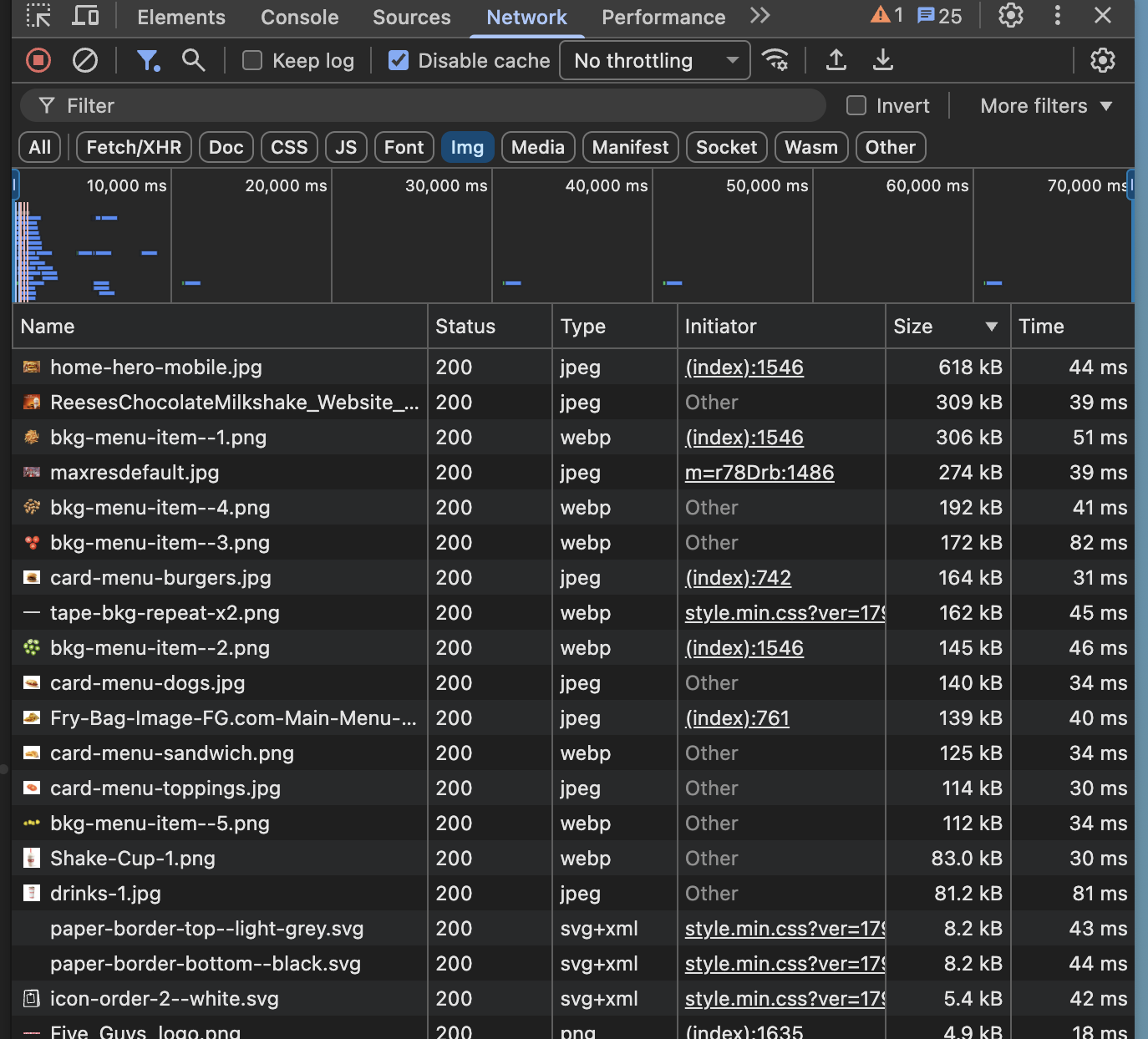
Five Guys image requests, sorted by size. Some .png URLs are served as WebP.
Open the Network screenshot at full size
Resize photographs for their display size and pixel density before compressing. A 400-pixel card on a 2× screen may need an 800-pixel source, rather than a 4000-pixel upload. Try WebP or AVIF where supported; transparency alone does not mean a file must stay PNG. Inspect the output instead of choosing the lowest quality blindly.
For a few files, TinyPNG is a practical starting point. For a whole site, use the image pipeline in your CMS or CDN. In Next.js, next/image generates responsive variants; an accurate sizes value helps the browser select the right one. The same principle applies on any platform: deliver the version the screen needs.
Check the result
Compare the original and optimized result at the same display size. Check mobile and desktop requests, preserve width and height, and confirm there is no visible quality loss that matters for the content. Keep the main hero image eager; lazy-load images farther down the page. Smaller files and a stable layout solve different problems, so verify both.
2. Recheck the cost of old dependencies
A dependency installed years ago can remain in the browser bundle long after the original decision. Updating supported packages is worth reviewing, but a higher version number does not guarantee a faster page. Package entry points, language files, duplicate dependencies, and unused features all affect what ships.
Moment.js illustrates why package versions deserve a closer look. On October 19, 2026, Bundlephobia showed 75.4 kB minified + gzip for 2.30.1 and 19.8 kB for 2.31.0—about 74% less in that service’s build. The maintainer’s release notes confirm the newer release and its changes.
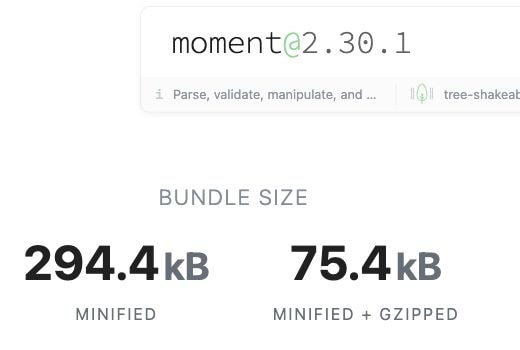
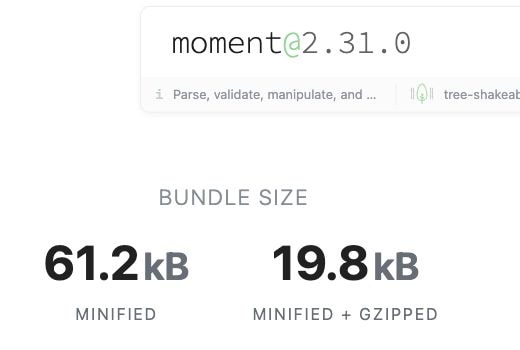
Bundlephobia gzip estimates: Moment.js 2.30.1 · 2.31.0
Compare the same entry point and required locales in your own production build. The actual saving depends on which code your application ships.
Update deliberately and ship only what you use
Start with the largest scripts your page loads. Review the changelog, check compatibility, update the lockfile, and build again. Then test the behavior that depends on the package: forms, dates, charts, or navigation.
Look beyond the version too. A page that formats one date should not automatically ship every locale. Moment’s locale guidance explains how to restrict those files. For simple date labels, the browser’s Intl.DateTimeFormat may be enough. With other libraries, prefer documented modular imports and load a heavy editor or chart only on pages that use it.
On WordPress and other site builders, the equivalent check is often the plugin list. Remove an unused slider, social feed, or duplicate analytics integration. Disabling a visible feature does not always remove its scripts, so verify the requests after changing the setting.
Check the result
Compare the JavaScript downloaded by the built page using the same compression and cache conditions. Do not use the size of node_modules or the npm archive as a proxy. A bundle analyzer can reveal duplicate libraries and unused locales; the Network panel confirms what visitors actually receive.
3. Make videos and widgets wait their turn
A video player, map, or chat window can request scripts, styles, and extra connections before anyone uses it. On a restaurant contact page, for example, a visitor may only need the address and opening hours. Loading a full interactive map immediately can do unnecessary work for that visit.
Google’s guidance on third-party embeds gives a useful reference: lazy-loading a YouTube embed can avoid roughly 500 kB during initial loading.
Use lazy loading or a preview that opens on click
For an iframe well below the first screen, start with the browser’s loading="lazy" attribute, or enable the equivalent CMS setting. Reserve its width and height so the surrounding text does not jump when it appears. This small HTML change works independently of your frontend framework.
<iframe
  src="https://www.youtube.com/embed/aKydtOXW8mI"
  title="YouTube video"
  loading="lazy"
  width="560"
  height="315"
  allowfullscreen
></iframe>
If the player is near the top, lazy loading may fetch it almost immediately. A stronger option is a static preview with a real play button that loads the player only after a click. Keep the preview light, give the button an accessible name, and check that keyboard users can start the video too.
Apply the same thinking to other integrations. An address plus a link to directions may be enough before a map is opened. A chat launcher can load the full widget when requested. Keep the essential information available; delay the supporting interface, rather than making readers wait to find the answer.
Check the result
Reload with cache disabled and inspect third-party requests before scrolling or interacting. Native lazy loading starts near the viewport, so it may load before the iframe becomes visible. Click-to-load should wait for interaction. Then test the actual video, map, or chat: reducing requests is only useful if the feature still works.
Change one thing, then measure again
Use the same URL, device profile, and test conditions before and after each change. Run several tests to avoid mistaking normal variation for an improvement. Compare transferred bytes alongside loading metrics: less image data does not prove that a slow server or a long-running script has been fixed. Keep the changes that improve the measured page without harming its content.
Run a free NEKTIQA speed test to inspect Lighthouse diagnostics. After a fix, compare another run; use scheduled tests and performance history to see whether the improvement holds after later releases.